

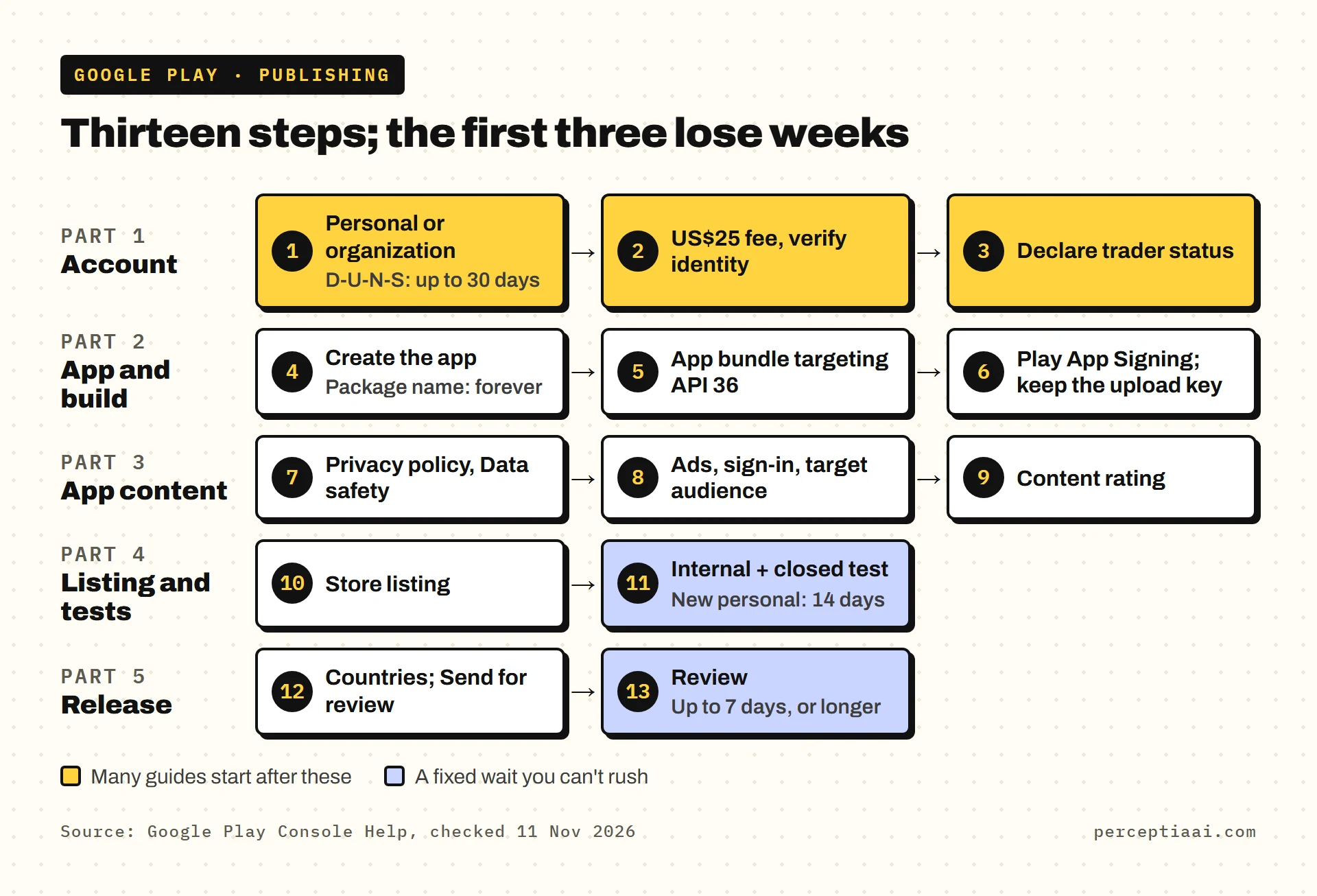
To publish an app on Google Play, you open a Play Console developer account (US$25 once), verify your identity, declare trader status, create the app, complete the App content forms, upload an Android App Bundle that targets API level 36, and send it for review. New personal accounts must also pass a 14-day closed test before production.
Many guides start at step 4, once there's an app to upload. I think steps 1 to 3 matter more for a business, because that's where the waiting is: a D-U-N-S number, identity checks and a trader declaration, all before Google looks at a single screen.
The 13 steps are in the order Play Console asks for them, in Google's own wording where it matters. Rules checked against Google's own pages on 11 November 2026.
Part 1: Set up the developer account
1. Choose personal or organization
Google's account type guide says: "Choose an organization account if you're creating an account for an organization or business—for example, if you're engaged in commercial, industrial, professional, or governmental activities." Financial, health, VPN and government apps must use an organization account.
| Personal account | Organization account | |
|---|---|---|
| Meant for | "a student, hobbyist, or amateur developer" | An organization or business |
| Needs a D-U-N-S number | No | Yes, and Google says it "can take up to 30 days" |
| 12-tester closed test | Yes, if created after November 13, 2023 | Not named in the rule |
| Can switch later | Personal to organization, through a new payments profile | Google does "not support changing an account from organization to individual" |
For a business, I'd pick the organization account without much debate. Start the D-U-N-S request now; see how to get a D-U-N-S number for Apple and Google Play.
2. Pay the fee and verify your identity
Google's Get started with Play Console sets three conditions: "You must be at least 18 years of age", "There is a US$25 one-time registration fee", and "Google Play does not accept prepaid cards."
Then verification. Google's identity verification page says: "You must verify your developer account before you can submit apps for consideration on Google Play." It asks:
- Personal accounts for an "Official government identity document", plus device verification: new personal accounts must show "they have access to a real Android mobile device using the Play Console mobile app".
- Organization accounts for a "D-U-N-S number", an "Official government identity document" and an "Official organization document". Google also "introduced new verification requirements for developers who create new organization accounts" in February 2024, so you may be asked to verify your website through Search Console.
For organizations, Google checks the legal name and address against your Dun & Bradstreet record, so type them exactly as registered.

3. Declare trader status
Every account now has to say whether it's a trader. Google's trader status article says: "All new developer accounts are required to submit the declaration immediately upon account creation. Existing developer accounts must submit the declaration by February 1, 2027." You declare under "Manage account > Account details > About you".
Traders get extra details shown on the store from March 1, 2027, including the D-U-N-S number. We explain who counts as a trader in Google Play trader status.
Part 2: Create the app and the build
4. Create the app and choose the package name
Google's Create and set up your app walks through it: you click "Create app", enter the name, a package name, a default language, app or game, free or paid, and a contact email. You also accept the "Developer Program Policies" and "US export laws" declarations and the Play App Signing terms.
The package name is the one field here you can't take back: "Package names for app files are unique and permanent, so name them carefully. Package names can't be deleted or re-used."
This also covers Android developer verification for most businesses. Google's developer verification guide says: "For new apps, when you create an app in the Google Play Console, Google Play automatically registers the package name and links it to your account."
5. Build an Android App Bundle that targets API level 36
Two build rules apply to every new app:
- App bundle. "From August 2021, new apps are required to publish with the Android App Bundle on Google Play" (Android developers). That's the .aab file, not an APK.
- Target API level. Starting August 31, 2026, "New apps and app updates must target Android 16 (API level 36) or higher to be submitted to Google Play" (Play Console help 11926878).
I'd ask your developer to confirm both in writing. An app built on an older template can miss the API level without anyone noticing until upload.
6. Set up Play App Signing and keep the upload key
"With Play App Signing, Google manages and protects your app's signing key" (Play Console help 9842756). New apps are enrolled automatically. Your developer signs each bundle with a separate upload key: "You use this key to sign your app bundle before uploading it to the Play Console... If compromised or lost, Google can reset it for you."
That reset is a safety net, not a plan. This is the step I'd push hardest on: make sure the upload key and its passwords are stored somewhere your business controls, not only on one developer's laptop.
Part 3: Fill in the App content page
All of this lives on the App content page ("Monitor and improve > Policy and programs > App content"), described in Google's Prepare your app for review. None of it is hard, but there's a lot of it.
7. Add the privacy policy and complete the Data safety form
Google's rule on the policy itself: "You must link to a privacy policy on your store listing and within your app, even if your app doesn't access personal or sensitive user data". Google wants it on "an active, publicly accessible URL" and "a standard, non-editable webpage (not a PDF or downloadable file)".
So the PDF in a shared drive won't do.
For Data safety: "Even developers with apps that do not collect any user data must complete this form and provide a link to their privacy policy." Include what your third-party SDKs collect, because Google says the form covers "data collected and handled through any third-party libraries or SDKs". Your own code collecting nothing doesn't settle the form.
8. Declare ads, sign-in details and target audience
- Ads: "You must declare whether your app contains ads."
- Sign-in: if parts of your app need a login, "you must provide all required details to enable access to your app." Give Google a working reviewer account.
- Target audience: "You must declare your app's target age group." Including children brings in Google's Families policy.
If you're a trader, you also confirm trader status for the app on this page.
9. Complete the content rating questionnaire
"All apps must have a content rating from the IARC to be on Google Play" (Content Ratings policy). You answer a questionnaire in Play Console and the ratings are assigned from your answers. Google warns: "Unrated apps may be removed from Google Play."
Part 4: Store listing and testing
10. Write the store listing
Google's limits come from Create and set up your app and its preview assets guide:
| Item | Google's requirement |
|---|---|
| App name | Up to 30 characters |
| Short description | Up to 80 characters |
| Full description | Up to 4,000 characters |
| App icon | 32-bit PNG, 512px by 512px, up to 1024KB |
| Feature graphic | JPEG or 24-bit PNG, 1024px by 500px |
| Screenshots | "a minimum of two screenshots across different device types" |
Two screenshots is the minimum, not the target. To appear in some recommendation formats, apps "must provide at least four screenshots with minimum 1080px resolution."
11. Test on internal and closed tracks
Start with internal testing: "Builds are normally available to testers within seconds of being added in Play Console" (testing requirements).
If yours is a personal account created after November 13, 2023, you must run a closed test with at least 12 testers for 14 days, then apply for production access. We cover how to pass it in Google Play's 12 testers rule.
Part 5: Release and review
12. Choose countries, create the release and send it for review
On the Production page, the "Countries / regions" tab sets where the app is available (Play Console help 6223646). Create the production release, add your app bundle and fix anything under "Errors summary".
Nothing goes to Google until you send it. Google's Publishing overview help says: "Items are not sent for review until you click Send for review."
13. Wait for review, and plan for a week
Google's Publish your app says: "For certain developer accounts, we'll take more time to thoroughly review your app to help better protect users. This may result in review times of up to seven days or longer in exceptional cases."
If you have a launch date, turn on managed publishing. Google says it "can also be useful for apps that are subject to extended review times, such as apps submitted by new developer accounts." Your approved app then waits until you press publish.
My advice: don't announce a Play Store launch date until the app is approved and waiting behind that button.
How long the whole process can take
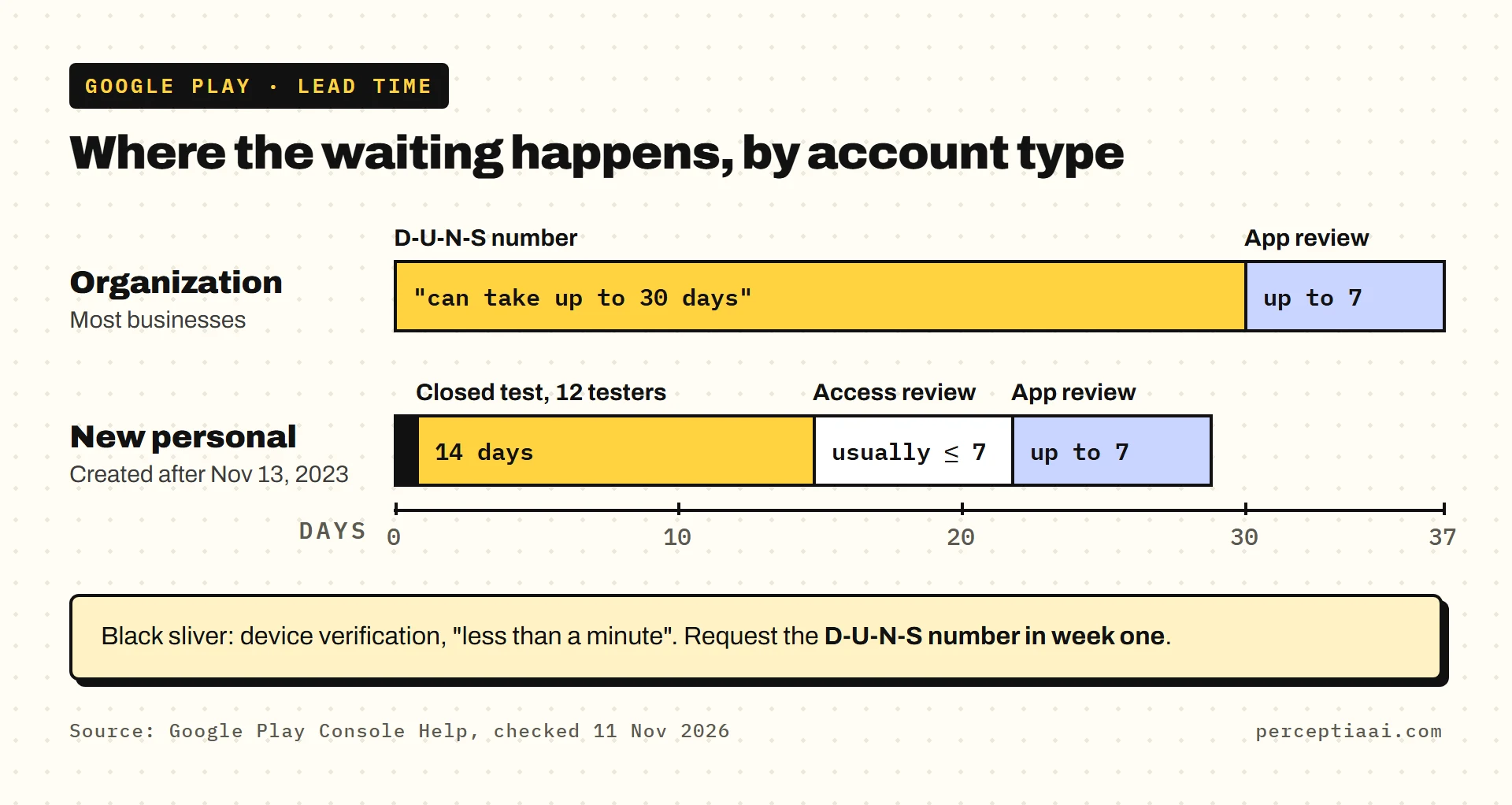
| Step | What Google or Dun & Bradstreet says | Source |
|---|---|---|
| D-U-N-S number (organizations) | "can take up to 30 days" | Google 13628312 |
| Device verification (personal) | "should take less than a minute" | Google 14316361 |
| Closed test (new personal accounts) | 14 days, then a review that "usually takes seven days or less" | Google 14151465 |
| App review | "up to seven days or longer in exceptional cases" | Google 9859751 |
For an organization account, the D-U-N-S wait can be the longest step, so request the number in week one. For a new personal account, the closed test is.
Your Google Play publishing checklist
- Organization account chosen, with the D-U-N-S number requested in week one
- US$25 fee paid by credit or debit card, not prepaid
- Identity, website or device verification complete
- Trader status declared for the account
- App created with a package name you'll keep forever
- Android App Bundle targeting API level 36
- Upload key stored where your business controls it
- Privacy policy live on a public web page and linked in the app
- Data safety form, ads, sign-in details and target audience done
- Content rating questionnaire submitted
- Store listing text, 512px icon, 1024 by 500 feature graphic and screenshots
- Internal test, then closed test (12 testers for 14 days on new personal accounts)
- Countries chosen, release sent for review, managed publishing on if you have a launch date
For what Apple asks for alongside all this, see the app launch checklist.
If you do one thing this week, look up or request your company's D-U-N-S number. The build can carry on while you wait, but the organization account can't open without it. I wouldn't let steps 1 to 3 wait for the app.
If your app is already built
If your app already works and only needs to get through the stores, our Store Submit service ($249, about 1 week) packages it for both: the store and privacy forms, data-safety labels, basic screenshots and Google's 12-tester, 14-day test run. It sits under App Rescue.